Check for Software Updates
The Software Version of your NETLAB+ system, along with the date that maintenance expires, is displayed in the last panel.
From > Software Updates option to check for available software updates.
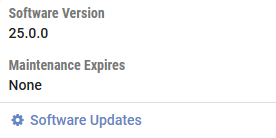
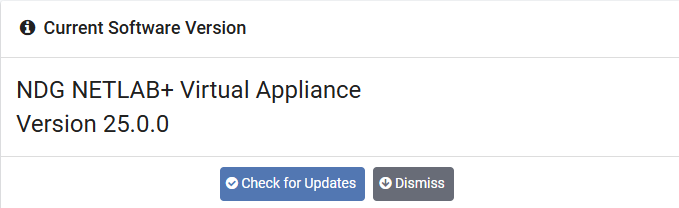
The software version currently running on your NETLAB+ system is displayed.
Click Dismiss to return to , or select the option to Check for Updates.
If your system has the latest available software, a message will indicate that the System is Up to Date. Select OK.
Otherwise, a message will indicate a later software version is available. Proceed to the next section for instructions on updating your NETLAB+ software.
Update NETLAB+ Software
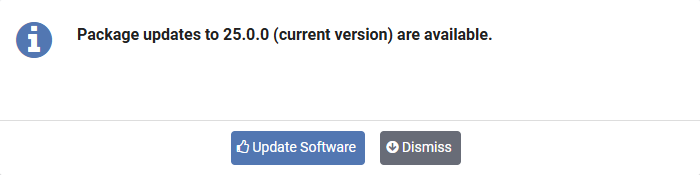
If your NETLAB+ system does not have the latest available software (see the previous section), checking for software updates will result in a message alerting you that a new version is available.
Warning
Before updating the software of your NETLAB+ system, it is strongly recommended that you take a snapshot or backup the NETLAB+ virtual appliance. Please see the Backup the NETLAB+ Virtual Appliance section.
Keep in mind that there is no built-in software downgrade or data restore function. A snapshot or backup of the virtual appliance will be required to recover from a failed software update, or if you decide to roll back to a previous software version.
NDG does not backup software or data in the virtual version of the NETLAB+ product.
Warning
To avoid disruption to users, update the system software at a time when there are no active lab reservations.
Take a snapshot or backup the NETLAB+ virtual appliance (see the Backup the NETLAB+ Virtual Appliance section for instructions).
Select Update Software.
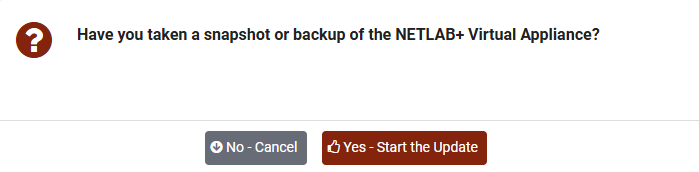
You will be prompted to verify that you have taken a snapshot or backup. If you have, select Yes - Start the Update.
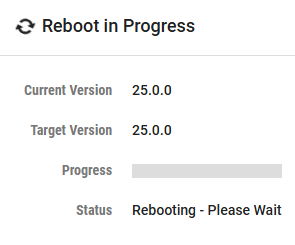
You may see messages indicating that a Reboot is in progress.